Lock one tab.
Leave the rest open.
TabAuth hides any tab behind a 6-digit code from your authenticator app. No account, no cloud sync, and nothing new to remember.
- Offer letterPlease review the attached terms before Friday.
- Flight confirmationYour seat is booked. Check in opens 24 hours before.
- Message from your landlordAbout the repair visit next week.
- Security alertA new device signed in to your account.
Authenticator, demo secret
••• •••
Live demo. Click the lock in the toolbar or press Ctrl+Shift+L, then unlock with the code.
Incognito does not lock anything, so anyone at your keyboard can still use the window. Locking the whole device shuts out the tabs you still need. TabAuth sits between the two.
Incognito window
Everything stays open to whoever is at the keyboard.
Lock the device
Everything is locked, including the tabs you still need.
TabAuth
Only the two you pick are locked. The other six keep working.
| Approach | Hides the tab | Rest of the browser stays usable | Opens with |
|---|---|---|---|
| Incognito window | No, an open window stays open | Yes | Nothing to unlock |
| Lock the device or browser | Yes, along with everything else | No | Your OS password or PIN |
| TabAuth | Yes, only the tabs you pick | Yes | 6-digit code from your authenticator |
- Shared computers
- An office desk or library terminal, and you step away mid-task.
- Parents
- Close the sites that should stay closed, with no monitoring software involved.
- Deep work
- Lock the feed that keeps pulling you back, and unlock it on your terms.
- Remote work
- Lock the inbox or dashboard before you leave the table at a cafe.
- Developers
- Keep consoles and admin dashboards closed while a screen is shared.
The shortcut locks the tab you are on, with no menu in between. The lock screen is new too: a bold live clock with the date, your choice of wallpaper, and recovery-code entry right on the lock screen.
You can remap the shortcut in your browser's extension shortcut settings.
A working model of the extension's dashboard, on sample data. Lock something in the demo at the top and watch it show up.
0 locked right now.
Locked 0 times in this visit.
Currently locked
Nothing is locked. Lock a tab in the demo at the top of the page and it appears here, ready to unlock.
Local only.
Your authenticator secret, recovery codes and the list of locked tabs live in the extension's storage on your device.
No account.
There is nothing to sign up for and nothing to sync, so there is no server copy to leak or reset.
Hashed recovery codes.
TabAuth stores SHA-256 hashes of your recovery codes, never the codes themselves.
What the extension asks your browser for
| Permission | Why it is needed |
|---|---|
| Storage | Keeps your secret, hashed recovery codes and locked tabs on this device. |
| Tabs | Reads the address of the tab you lock, so the lock can be matched to that page. |
| Active tab | Acts on the tab you clicked, at the moment you click. |
| Scripting and access to all sites | Draws the lock screen over a page. It has to be allowed everywhere because you can lock any site. |
Using it
TabAuth is a free browser extension that locks individual tabs behind a 6-digit code from your authenticator app. Only the tabs you choose are hidden; everything else in the browser keeps working.
Click the TabAuth icon, or press Ctrl+Shift+L (Cmd+Shift+L on Mac), to lock the current tab. A lock screen with a live clock covers the page. To unlock, type the current 6-digit code from your authenticator app, or use one of your recovery codes.
Any authenticator app that can scan a standard TOTP QR code. TabAuth uses the same time-based one-time password format as most two-factor logins: 6 digits that change every 30 seconds.
Yes. The default is Ctrl+Shift+L (Cmd+Shift+L on Mac), and you can remap it in your browser's extension shortcut settings.
Locking an address also covers the same address with a trailing slash, a # or a /#, so a small change to the link does not open the page.
When something goes wrong
Use a recovery code. TabAuth gives you 10 one-time recovery codes that are shown once, so download or copy them somewhere safe. Each code works a single time, and you can generate a new set from the dashboard. TabAuth keeps nothing on a server, so there is no account that could reset it for you.
After 5 wrong attempts, TabAuth pauses unlocking for 30 seconds before it accepts another try.
Safety and data
Incognito does not lock anything, so anyone at your keyboard can still open the window. Locking the whole device or browser hides everything at once. TabAuth locks only the tabs that matter and leaves the rest usable.
Your authenticator secret, recovery codes and the list of locked tabs are kept in your browser's local extension storage on your device. TabAuth has no account, no sign-up and no cloud sync. Recovery codes are stored as SHA-256 hashes.
No. TabAuth is a privacy screen for your own browser sessions: the moments you step away, share a screen or hand over a laptop. Keep locking your device with your operating system as well.
Yes. Lock the sites you want closed, and only someone with the authenticator app or a recovery code can open them. The list of locked sites stays in the browser on that computer.
Browsers and cost
Chrome, Firefox and Microsoft Edge. Each store listing is built for that browser's own extension APIs.
Yes, after you turn it on yourself. Open your browser's extension settings, find TabAuth and allow it in incognito or private windows. The exact wording differs between browsers.
Yes. TabAuth is free to install and use on Chrome, Firefox and Edge.
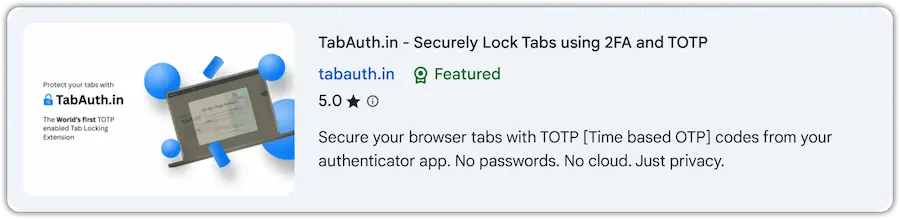
On the Chrome Web Store, TabAuth carries the Featured badge. The Chrome team assigns it after reviewing an extension by hand. How the badge works.